Step 3: Download/upload data and other files to RStudio
Download the data file
After the data collection process is completed, your data is ready to upload.
Go to the “Responses” tab of the Google Form.
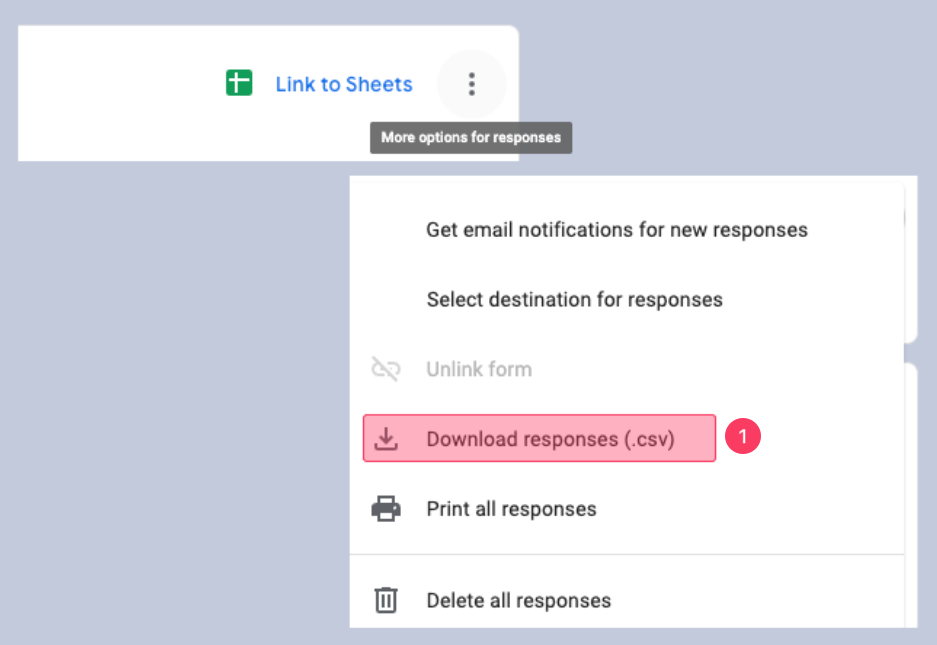
Click the three dots (next to “Link to Sheets”) ➜ “Download responses (.csv)”
The file will be downloaded as a .zip folder.
Double-click that folder to extract the file.
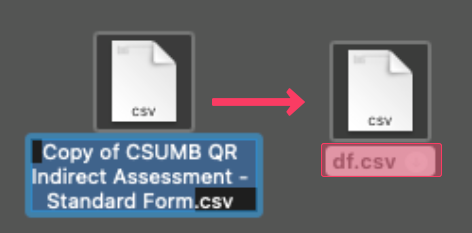
Rename the file name to “df.csv” (Make sure it’s not “df.csv.csv”).
Download the Quarto file
Click to download the Quarto file:
OR
Download the Word Template file
Click to download the Word Template file:
Upload these files to RStudio
- Upload these three files (df.csv, .qmd, and the Word Template files) to RStudio one by one.
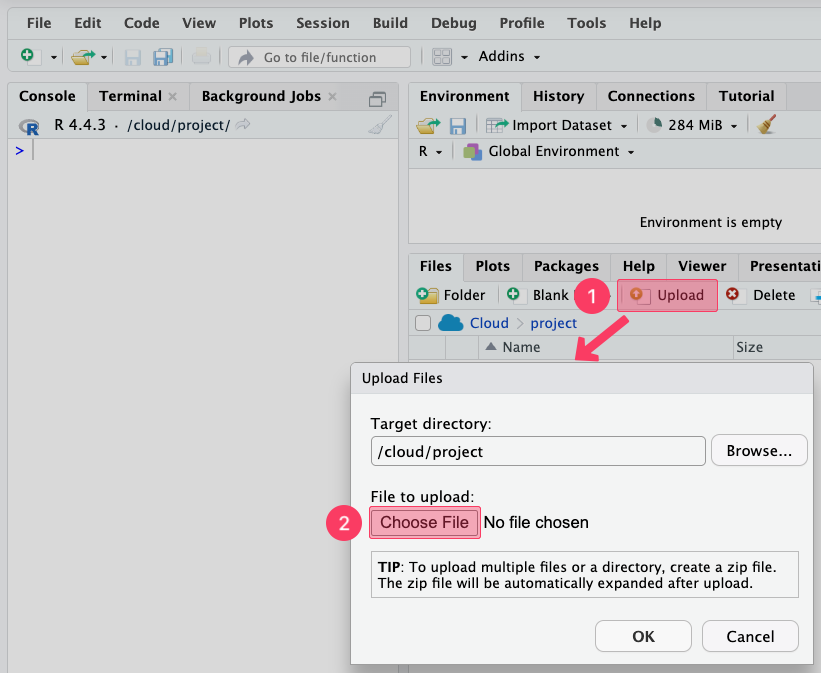
You will see three files under the “Files” tab.
Click on “standard.qmd” or “short.qmd” (the version you use):
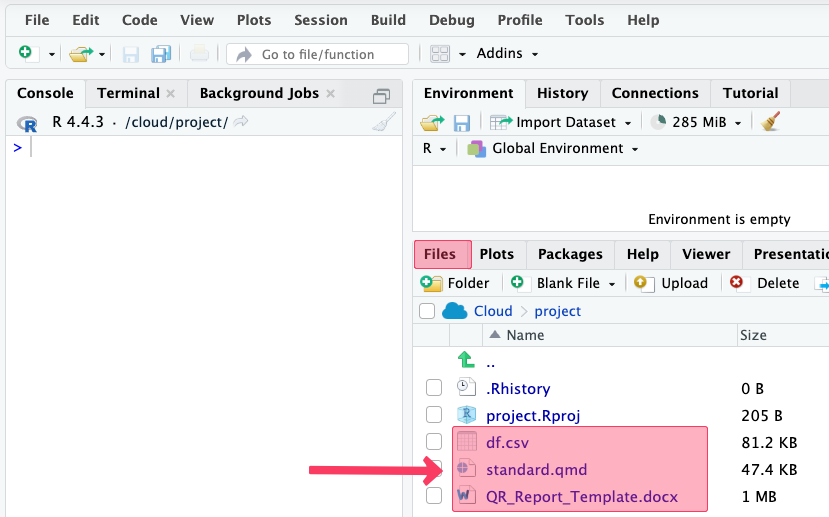
Clicking on the .qmd file will open it on RStudio.
Click “Run” ➜ “Run All.
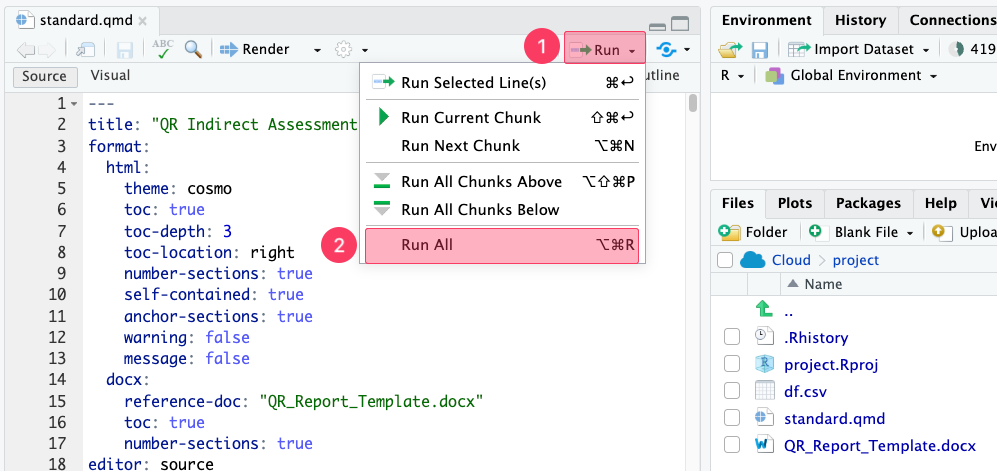
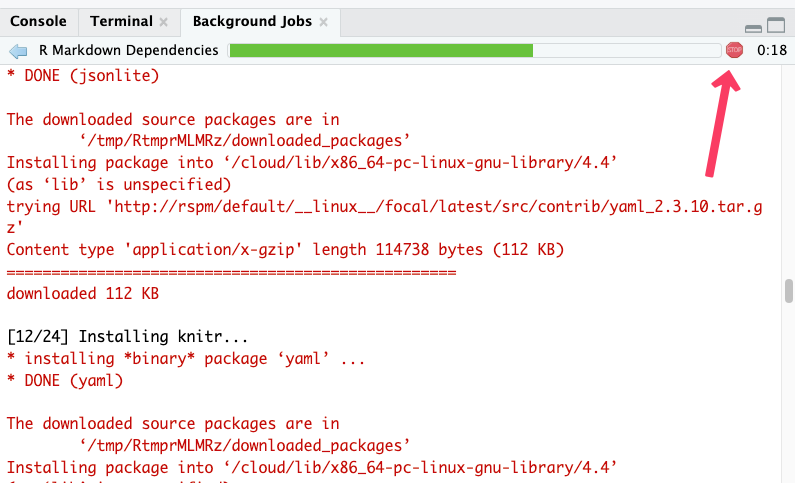
This process will install all the packages. For the first time the codes are run, this process may take 15-20 minutes or shorter depending on your internet connection.
You will see a STOP sign and codes are running in the console. You should wait until the “STOP” sign in the console disappears and no more code is running in the console.
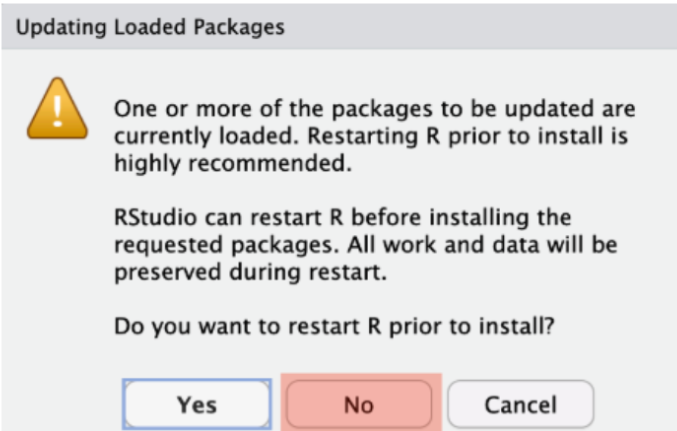
- During this process, if you see the pop-up window above (Updating Loaded Packages), click “No” every single time.